How to forward port in AWS Application load balancer ALB port forwarding
System Design practice on Codemia
Work through 120+ system design problems with detailed solutions, from rate limiters to multi-region storage.
Introduction
AWS Application Load Balancers (ALB) offer several advanced features for distributing incoming network traffic to your backend targets. One of these capabilities is port forwarding, which enables you to route incoming requests on certain ports to varying ports on your application’s backend targets. This can be particularly useful when managing multiple services or dealing with applications that listen on non-standard ports.
Understanding Port Forwarding
Port forwarding in the context of AWS ALB refers to the ability to direct traffic received on a port to a different port on the backend target within a target group. This flexibility can be useful for a myriad of use cases, such as:
- Serving multiple applications on a single EC2 instance without assigning multiple Load Balancers.
- Simplifying configurations when virtual hosts or containerized services each require their respective ports.
Prerequisites
Before you configure port forwarding with an AWS Application Load Balancer, ensure:
- You have an active AWS account and have created an Application Load Balancer.
- Your application is running on one or more EC2 instances or any supported target type (e.g., IP addresses, Lambda functions).
- You have necessary permissions to modify and update AWS resources such as Load Balancers, Target Groups, and Route Tables.
Steps to Configure Port Forwarding in ALB
1. Create a Target Group
The first step in implementing port forwarding is creating a Target Group which will receive traffic from the load balancer.
- Navigate to the AWS Management Console and open the EC2 Dashboard.
- In the left sidebar, select Target Groups.
- Click Create Target Group.
- For Target type, choose Instance or other applicable options depending on your application architecture.
- Set the Protocol to either `HTTP` or `HTTPS` and the Port to the desired port on which your service listens (this can be different from the incoming load balancer port).
2. Register Targets
Next, register the EC2 instances or IP addresses that you want to forward traffic to:
- Select the recently created target group.
- Click Register targets.
- Choose the instance or type in IP addresses.
- Make sure to specify the port number that your application listens on the target.
3. Configure the Application Load Balancer
Once the target group is ready with the registered targets, configure the ALB to forward traffic:
- Navigate back to the Load Balancers section in the EC2 Dashboard.
- Select the Application Load Balancer you want to modify and go to the Listeners tab.
- Edit or create a new listener:
- Click Add listener if creating new.
- Choose `HTTP` or `HTTPS` as the protocol.
- Set the Port to the desired incoming request port.
- Forwarding Rules:
- Add a forward action rule to send requests to the target group created in the first step.
- You can use conditions to apply port forwarding only to certain paths, hostnames, or HTTP headers.
4. Test the Configuration
Verify that requests to the ALB's DNS or endpoint correctly forward to the desired port on the backend targets:
- Visit your ALB's DNS name in a web browser or use tools like `curl` for testing.
- Observe that requests on this path and port are appropriately routed to the target backend and port.
Diagram: How Traffic Flows in ALB Port Forwarding
Below is a simplified flow of how port forwarding works in an AWS ALB setup:
- Security: Ensure that security groups and network access lists (NACLs) are configured to allow traffic on required ports.
- SSL Management: When dealing with HTTPS, manage your certificates properly and consider termination at the ALB if offloading is needed.
- Health Checks: Configure health checks on the target group to ensure your ALB only forwards traffic to healthy targets.
Related reading
- How to Generate a Presigned S3 URL via AWS CLI
- How to generate a temporary url to upload file to Amazon S3 with boto library?
- How to generate access token for an AWS Cognito user?
- How to get a custom healthcheck path in a GCE L7 balancer serving a Kubernetes Ingress?
- How to generate OpenAPI 3.0 YAML file from existing Spring REST API?
- How to generate password_hash for RabbitMQ Management HTTP API
- How to get additional lines of context in a CloudWatch Insights query?
- How to get an AWS EC2 instance ID from within that EC2 instance?
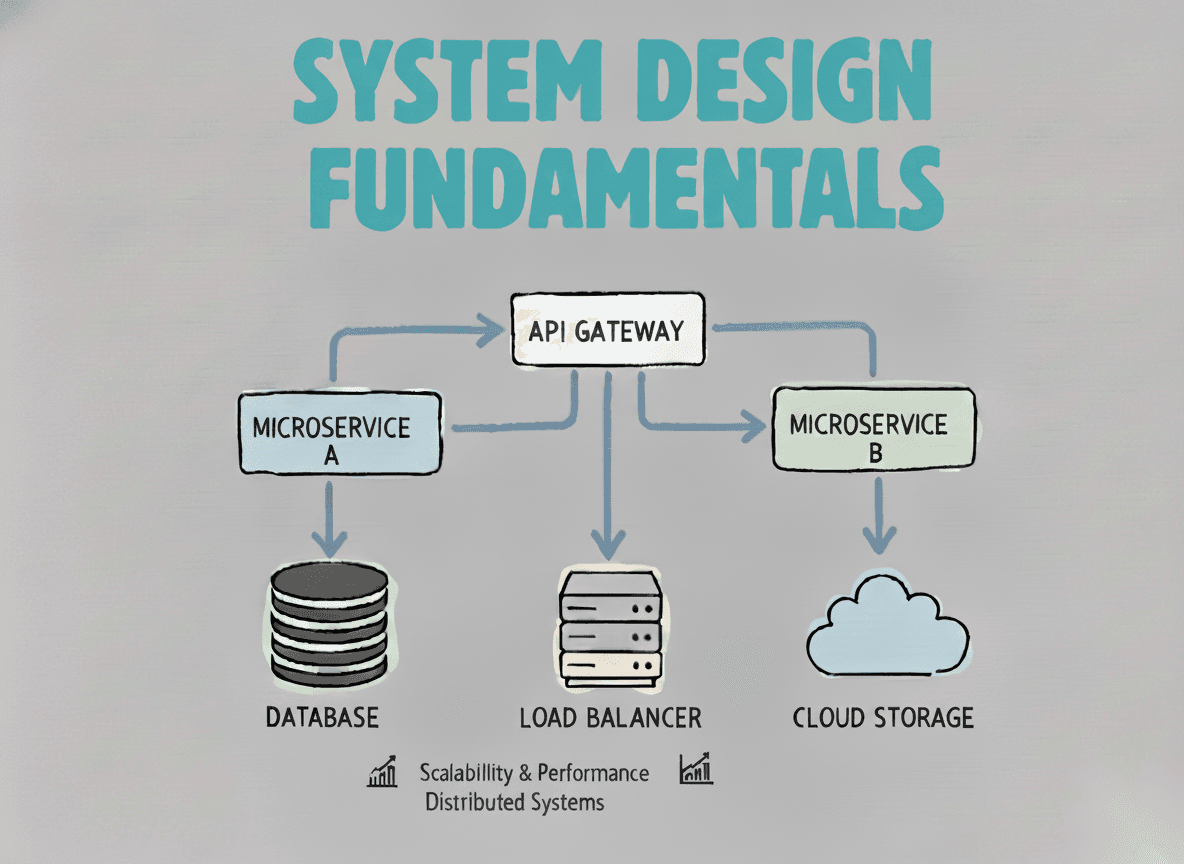
System Design Fundamentals
Build a strong foundation in designing scalable, reliable distributed systems.
View the courseSystem Design practice on Codemia
Work through 120+ system design problems with detailed solutions, from rate limiters to multi-region storage.