How do I use sudo to redirect output to a location I don't have permission to write to?
System Design practice on Codemia
Work through 120+ system design problems with detailed solutions, from rate limiters to multi-region storage.
Introduction
This problem surprises people because sudo only elevates the command it starts, not the shell syntax around it. Redirection operators such as > and >> are handled by your current shell first, so the write fails before the elevated command ever gets a chance to run.
Why sudo echo ... > file Fails
Consider this command:
What actually happens is:
- your shell tries to open
/etc/example.conffor writing - that file open happens as your normal user
- only after that would
sudo echorun
If your user cannot open the file, the command fails immediately. The important rule is that the process performing the file redirection needs permission, not just the process generating the output text.
The Most Common Fix: sudo tee
The standard solution is to move the file write into a process that actually runs under sudo. tee is ideal for that:
tee reads from standard input and writes to the file with elevated permissions, so the protected path is opened by the privileged process.
To append instead of overwrite:
By default, tee also prints the same text back to your terminal. If you want a quiet write:
Using sudo sh -c or sudo bash -c
Another valid approach is to run a whole shell as root so the redirection happens inside that elevated shell:
Or, with bash and printf:
This works because the child shell, not your current shell, performs the redirection.
When tee Is Better Than sh -c
Both patterns are correct, but they are best used in different situations.
Use tee when:
- you already have a pipeline
- you want to write or append one generated stream
- you want the command to stay readable
Use sudo sh -c when:
- you need several redirections in one statement
- the command contains shell operators that belong together
- quoting the whole expression is manageable
For most single-file writes, tee is clearer and less error-prone.
A Practical Example with a Privileged Path
Writing to a sysctl setting is a common example:
The same pattern works for many root-owned files under /etc, /proc, and similar system paths.
If you need multiple lines, a here-document can work well with tee:
That is often easier to read than nested quotes inside sudo sh -c.
Prefer printf When Output Must Be Exact
echo is fine for simple text, but it behaves inconsistently across shells when escapes or special flags are involved. printf is usually more predictable:
If you are generating config files, exact output matters. printf is the safer habit.
Safer Editing Alternatives
Sometimes redirection is not the best tool at all. If you need to edit an existing privileged file manually, sudoedit is often safer because it lets you edit a temporary copy with your normal editor and then writes the result back with elevated permissions.
Redirection is best when:
- you are creating known content programmatically
- you are appending a specific line
- you want the command to be reproducible in scripts or documentation
Common Pitfalls
- Assuming
sudoalso elevates>or>>. It does not. - Using
echofor complex content that includes escapes, backslashes, or quotes can produce the wrong file contents. - Forgetting that
teeoverwrites by default unless-ais used for append mode. - Quoting badly inside
sudo sh -ccan cause shell expansion or syntax errors. - Creating root-owned files in places you plan to edit later as a normal user can lead to confusing permission problems.
Summary
- Shell redirection is performed by the shell, not by
sudo. - '
sudo teeis the clearest solution for writing to protected files through a pipeline.' - '
sudo sh -corsudo bash -cworks when the whole redirection expression must run in an elevated shell.' - Use
printfinstead ofechowhen output must be exact. - For interactive edits to protected files,
sudoeditis often safer than raw redirection.
Related reading
- How do I watch a file for changes?
- How do Monitored Training Sessions work?
- How do servers talk to clients?
- How do we deploy a trained tensorflow model on a mobile device?
- How do I view events fired on an element in Chrome DevTools?
- how do I work around log4net keeping changing publickeytoken
- How do we install dynamic modules non support officially on Nginx Ingress Controller? terraform, helm chart
- How do you actually apply a trained model?
System design interview problems on this topic
- Design a Metrics Monitoring and Alerting System: solution and walkthrough
- Design a Distributed Tracing System: solution and walkthrough
- Design a Code Deployment System: solution and walkthrough
- Design GitHub Actions: solution and walkthrough
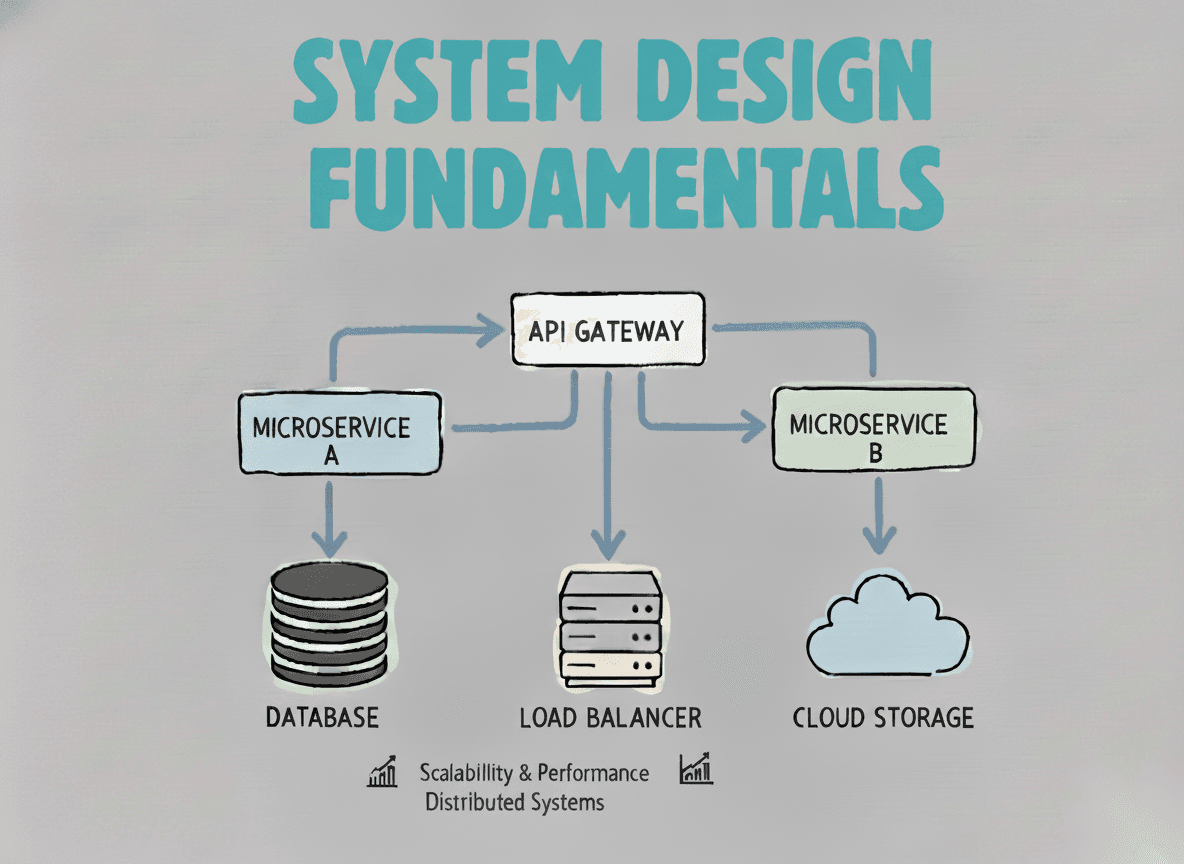
System Design Fundamentals
Build a strong foundation in designing scalable, reliable distributed systems.
View the courseSystem Design practice on Codemia
Work through 120+ system design problems with detailed solutions, from rate limiters to multi-region storage.