How do you obscure text in a password field in an iPhone Application?
System Design practice on Codemia
Work through 120+ system design problems with detailed solutions, from rate limiters to multi-region storage.
Introduction
On iPhone, password obscuring is usually done with UITextField and isSecureTextEntry. That property is the core requirement, but it is not the whole job. A good password field also needs correct keyboard behavior, safe show-and-hide handling, and accessibility support so the login flow is secure and usable.
Configure a Secure Password Field
A solid baseline uses secure text entry, the correct content type, and keyboard settings that do not interfere with password input.
textContentType = .password helps the system and password managers recognize the field properly.
Add a Show and Hide Toggle Carefully
Many apps provide an eye button so the user can reveal the password temporarily. That is fine, but toggling secure entry can affect cursor behavior if implemented carelessly.
That reset pattern helps avoid cursor glitches that can appear when secure entry is toggled mid-edit.
Keep the Field Secure Beyond Appearance
Obscuring the text on screen is only one part of password handling. Good password field behavior also includes:
- not logging the password
- not storing raw password text in long-lived app state
- clearing sensitive UI state after successful authentication when appropriate
- using secure transport and token-based sessions on the backend
On-screen masking does not protect against weak application design elsewhere.
Support Accessibility Properly
A secure field should still be accessible to users relying on VoiceOver and related tools.
If you add a show-and-hide button, make its label reflect the current action clearly, such as "Show password" or "Hide password." Ambiguous labels make the control harder to use with assistive technology.
Avoid Debugging Habits That Leak Sensitive Data
During development, it is easy to print field contents to debug form behavior. That is a bad habit for password fields.
Do not do this in real code:
If you need logging around authentication, log state transitions or error reasons, not the secret itself.
SwiftUI and UIKit Can Share the Same Policy
In SwiftUI, the equivalent control is SecureField, while UIKit uses UITextField. Even if the implementation differs, the same rules still apply:
- obscure the text
- disable correction and capitalization where appropriate
- keep secrets out of logs
- make reveal behavior deliberate and accessible
That keeps the user experience consistent across different UI stacks in the same app.
Common Pitfalls
The biggest pitfall is setting isSecureTextEntry but leaving autocorrection or auto-capitalization enabled, which creates a poor password-entry experience.
Another common issue is implementing a visibility toggle without preserving text and editing state properly.
People also treat on-screen obscuring as if it were complete password security, when it is really only one UI-layer protection.
Summary
- Use
UITextFieldwithisSecureTextEntryfor password obscuring in UIKit. - Configure keyboard and content-type settings so the field behaves like a real password field.
- Implement show-and-hide behavior carefully to preserve editing state.
- Keep password values out of logs and unnecessary app state.
- Add accessibility metadata so the secure field remains usable as well as hidden.
Related reading
- How do you pass Authorization header through API Gateway to HTTP endpoint?
- How do you prevent gaming of page views?
- How do you set SSE-S3 or SSE-KMS encryption on S3 buckets using Cloud Formation Template?
- How do you turn off swagger-ui in production
- How do you perform wireless debugging in Xcode 9 with iOS 11, Apple TV 4K, etc?
- How do you run a task in the background in flutter?
- How do you use bcrypt for hashing passwords in PHP?
- How does Kafka specify key alias for Client Authentication?
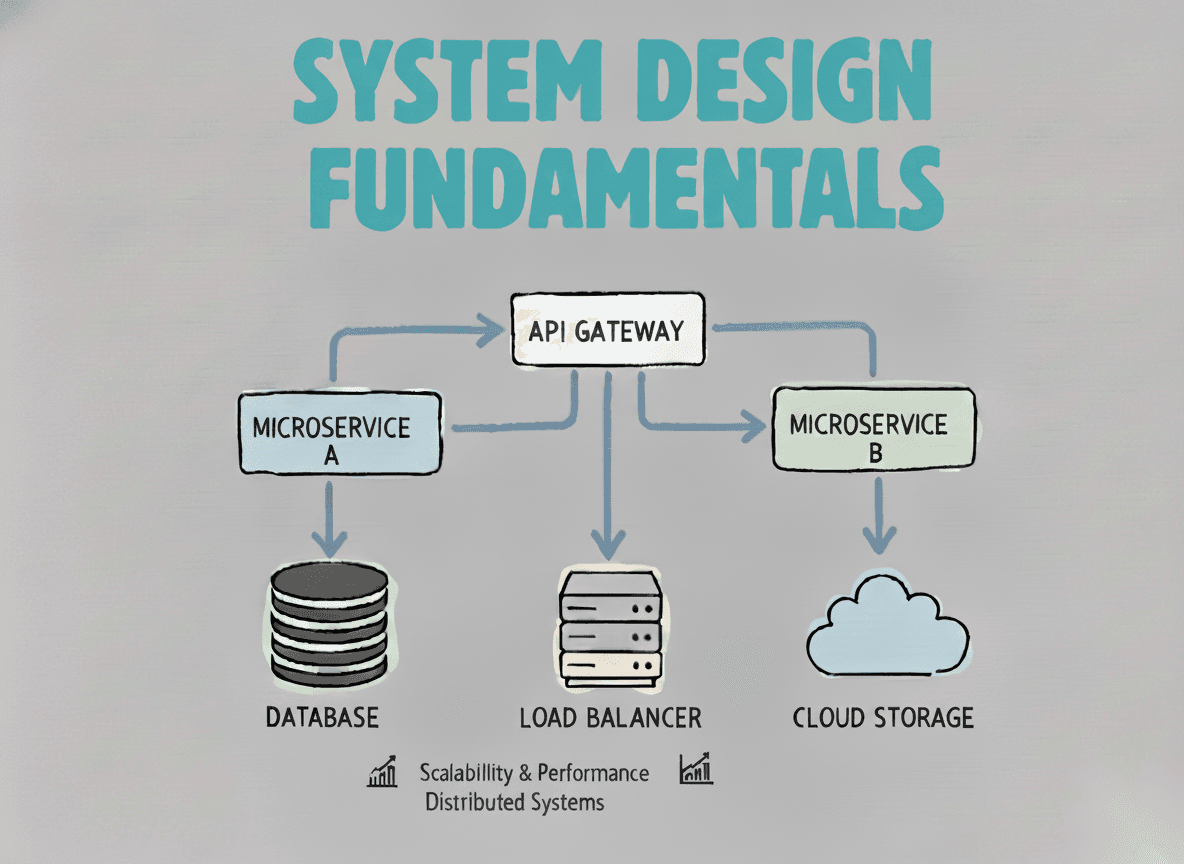
System Design Fundamentals
Build a strong foundation in designing scalable, reliable distributed systems.
View the courseSystem Design practice on Codemia
Work through 120+ system design problems with detailed solutions, from rate limiters to multi-region storage.